

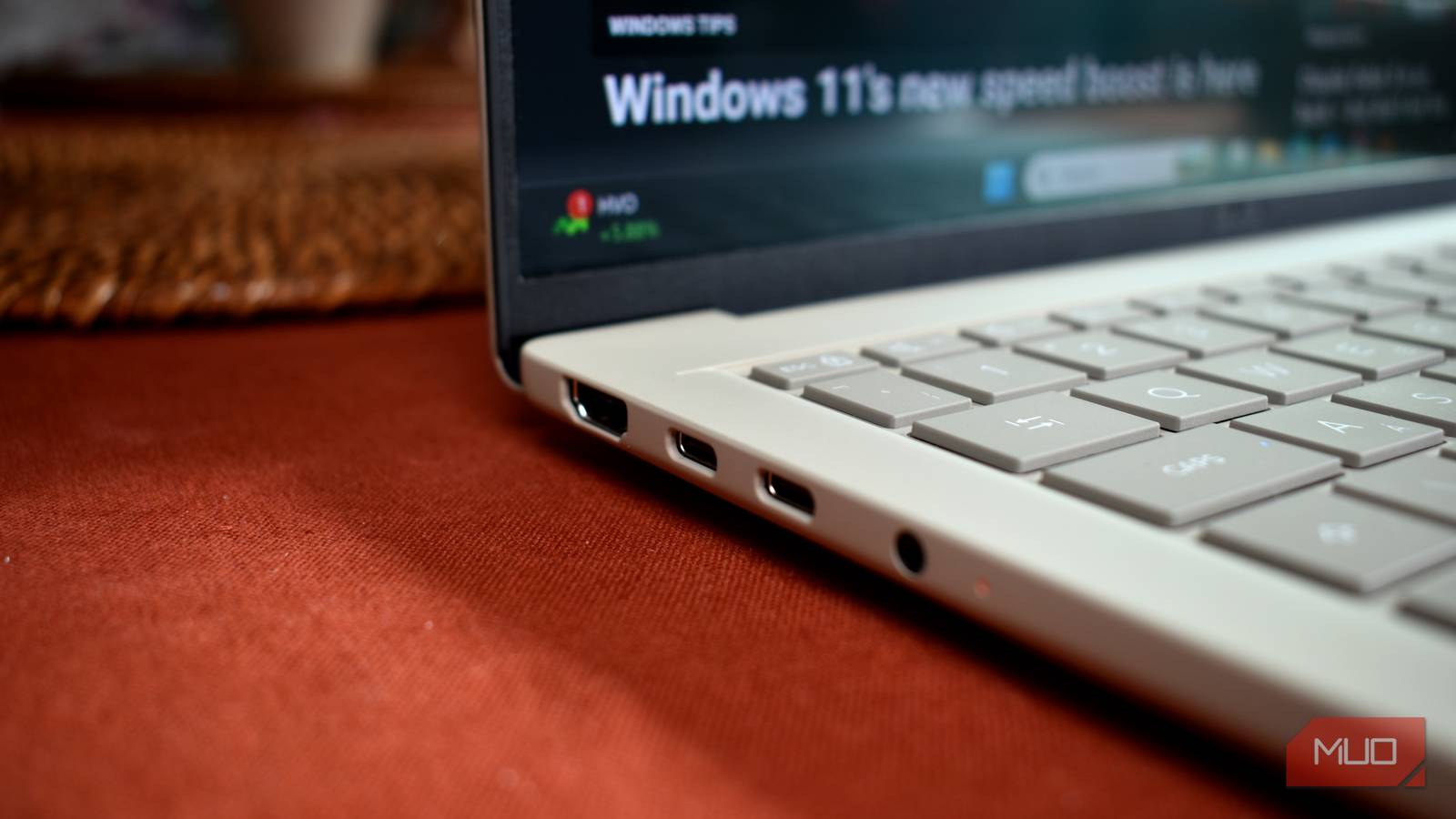
Every PC comes with multiple USB ports, and if you're like most people, you probably use the same one or two out of habit. It is easy to assume that all USB ports are identical, but they are not. USB technology has evolved through several generations, and each generation brought major changes in data transfer speed and power delivery. If you are plugging an external SSD into an older port without realizing it, you may be experiencing sluggish file transfers for no reason.
USB ports may all look the same, but they aren't
Stop using the most convenient port
Unless you are the kind of person who reads manuals for fun, all USB ports on your PC or laptop may seem identical. But USB has gone through several generations over the years, and each one came with a significant jump in how fast it can actually move data. Knowing this matters because USB 2.0, which was released in April 2000, is still around. It tops out at 480Mbps, which sounds fine until you realize USB 3.0 is ten times faster at 5Gbps. That means if you have been plugging your SSD into the USB 2.0 port this whole time, you have been blaming the SSD for nothing. The best way to avoid this is to understand what different USB standards actually mean.
USB was first introduced in the mid-1990s as a simple way to connect peripherals. USB 1.0 and 1.1 supported speeds of 12 Mbps, which was fine for mice and keyboards but far too slow for large files. Then USB 2.0 arrived in 2000 and raised the ceiling to 480 Mbps. It was a massive improvement at the time, and many devices still use it today. Later, USB 3.0 was launched in 2008 with 5 Gbps, followed by USB 3.1 and USB 3.2 with speeds of 10 Gbps and 20 Gbps. The latest USB4 and Thunderbolt connections can reach 40 Gbps or higher. The problem is that all of these ports can look nearly identical on the outside.
Key USB standards at a glance
| USB version | Max theoretical speed | Realistic file copy |
|---|---|---|
| USB 2.0 | 480 Mbps | 30–40 MB/s |
| USB 3.0 / 3.1 Gen 1 | 5 Gbps | 100–400 MB/s |
| USB 3.1 Gen 2 / 3.2 Gen 2 | 10 Gbps | up to ~1 GB/s |
| USB 3.2 Gen 2x2 | 20 Gbps | up to ~2 GB/s |
| USB4 / Thunderbolt 3/4 | 40 Gbps | up to ~3 GB/s |
Those numbers represent theoretical limits, and real-world speeds are lower, but the differences are still huge. A file that takes an hour over USB 2.0 might take only a few minutes over USB 3.2.
The wrong USB port can slow down file transfers and charging
The closest port is rarely the fastest one
Most PCs and laptops come with at least three or four USB ports scattered in different places. And like most people, I used to just grab whichever one was the most convenient. On a desktop, that meant using the ports on the front panel, while on a laptop, whichever side the cable reached naturally. The problem is that the most convenient USB port is not always the fastest one. If you are using the faster ports for peripherals like the keyboard and mouse, while plugging storage drives into slower ports out of habit, you could be leaving a lot of transfer speeds on the table. Even if two USB ports are sitting right next to each other, one could be USB 3.2 Gen 2, while the other one might be USB 3.2 Gen 1.
It's not just about file transfer speeds either. USB standards also affect charging speeds. USB 2.0 ports max out at 2.5W only, while USB 3.x can do up to 4.5W. A proper USB-C PD port can go much higher. So if you are picking a random USB port for powering your phone, smartwatch, earbuds, or something else, you're charging a lot slower than you could. USB-C ports on your PC can vary just as wildly. One might be USB4, while the other one might support Thunderbolt 5. You would never notice this either, because your drives will show up, your device will charge, and files will copy over fine. It's just that all these things will be slower than what they could be.
The USB naming mess
One of the reasons so many people end up using the wrong port is that USB names are confusing. USB 3.0 was later renamed USB 3.1 Gen 1, then USB 3.2 Gen 1. A 5 Gbps port may be labeled USB 3.0, USB 3.1 Gen 1, or USB 3.2 Gen 1 depending on when the device was manufactured. Similarly, a 10 Gbps port can be called USB 3.1 Gen 2 or USB 3.2 Gen 2. This is not just a small detail; it makes it hard for buyers to compare devices and can leave even tech-savvy users guessing which port is faster.
Because of this, you should not rely on the name printed in a manual or on a sticker alone. Instead, look at the physical port, the product specifications, and the markings provided by the manufacturer. If a laptop was released in the last few years, the USB-C ports may support USB4 or Thunderbolt 4, but that is not guaranteed. Budget laptops sometimes include USB-C ports that only support USB 3.2 Gen 1 or even USB 2.0, which is a huge difference.
Identifying USB ports is easy
Choose wisely
Understanding USB standards is one thing, but how do you actually identify ports on your PC? Well, there are a few ways. The most obvious giveaway is color. USB 2.0 ports are typically black, while USB 3.0 ports are blue. Some manufacturers use green or teal to mark USB 3.1 Gen 2 ports, while the red color usually means the port stays on even when your PC is off.
The big catch is that there's no universal standard for color coding USB ports, so a blue USB port can still be USB 2.0 standard. The good thing is that most reputable manufacturers follow these conventions, so color is still a decent first signal.
Source: MakeUseOf News